
Your Author Profile
Your author profile appears at the bottom of your public blog pages and on individual posts. Here's how to set it up.
Accessing Settings
From the Dashboard, open the sidebar menu and click Settings. You'll see three tabs:
-
Blog Page Name — Your public URL slug and display name
-
Blog Logo — A custom logo for your blog header
-
Author Details — Your personal identity on posts
Author Details Tab
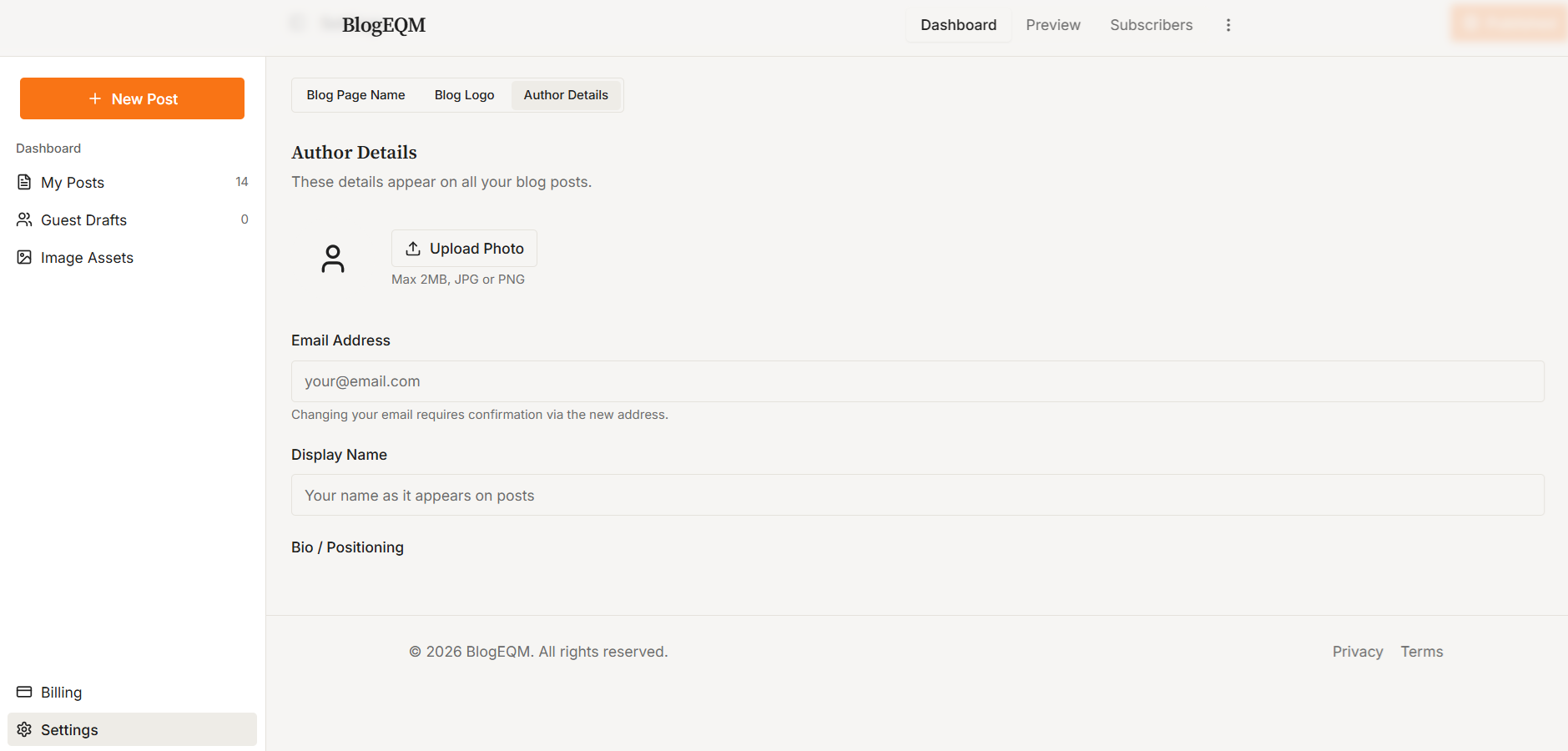
This tab lets you configure:
-
Avatar — Upload a profile photo (max 2MB, JPG or PNG). This appears alongside your posts.
-
Email Address — Your account email. Changing it requires confirmation via the new address.
-
Display Name — The name shown as the author on your posts. This is also pre-filled in the Author section when creating new posts.
-
Bio / Positioning — A short tagline or bio (up to 300 characters) that appears in the Author Block on your blog.
-
Website URL — A link to your personal site or portfolio.
Blog Logo Tab
Upload a custom logo image (max 2MB) that replaces the default branding in the header of your public blog page. You can remove it at any time to revert to the default.
How It Flows to Posts
When you create a new post, your Display Name, Bio, and Website URL from Settings are automatically pre-filled in the post's Author section. You can override these per-post if needed.